> ## Documentation Index
> Fetch the complete documentation index at: https://dify-6c0370d8-docs-new-agent-experience.mintlify.site/llms.txt
> Use this file to discover all available pages before exploring further.
# Tool OAuth
> Replace manual API-key entry with an OAuth authorization flow so users grant access to third-party services with one click
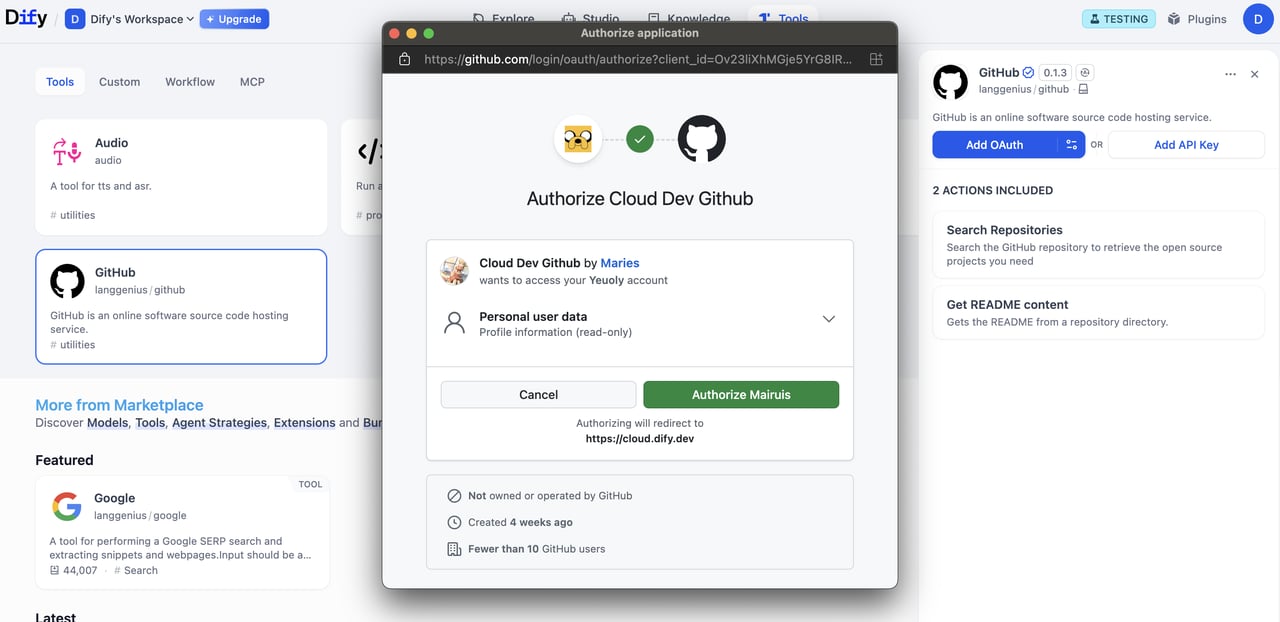 This guide teaches you how to build [OAuth](https://oauth.net/2/) support into your tool plugin.
OAuth is a better way to authorize tool plugins that need to access user data from third-party services, like Gmail or GitHub. Instead of requiring the user to manually enter API keys, OAuth lets the tool act on behalf of the user with their explicit consent.
## Background
OAuth in Dify involves **two separate flows** that developers should understand and design for.
```mermaid theme={null}
sequenceDiagram
autonumber
participant Admin as Admin / Developer
participant Service as Third-party Service
participant Dify
participant User
rect rgb(235, 245, 255)
Note over Admin,Dify: Flow 1: One-time OAuth client setup
Admin->>Service: Register OAuth app
Service-->>Admin: client_id + client_secret
Admin->>Dify: Configure plugin OAuth client
end
rect rgb(245, 255, 235)
Note over User,Service: Flow 2: Per-user authorization
User->>Dify: Click "Authorize"
Dify->>Service: Redirect to consent screen
User->>Service: Approve
Service-->>Dify: Authorization code
Dify->>Service: Exchange for access token
Service-->>Dify: Access + refresh tokens
Dify-->>User: Tool ready to use
end
```
### Flow 1: OAuth Client Setup (Admin / Developer Flow)
On Dify Cloud, the Dify team creates OAuth apps for popular tool plugins and sets up OAuth clients, so users don't need to configure this themselves.
Admins of self-hosted Dify instances must go through this setup flow.
Admins or developers of a Dify instance first register an OAuth app with the third-party service as a trusted application. This provides the credentials needed to configure the Dify tool provider as an OAuth client.
As an example, here are the steps to set up an OAuth client for Dify's Gmail tool provider:
1. Go to [Google Cloud Console](https://console.cloud.google.com) and create a new project, or select an existing one.
2. Enable the required APIs (e.g., Gmail API).
1. Navigate to **APIs & Services** > **OAuth consent screen**.
2. Choose the **External** user type for public plugins.
3. Fill in the application name, user support email, and developer contact.
4. Add authorized domains if needed.
5. For testing, add test users in the **Test users** section.
1. Go to **APIs & Services** > **Credentials**.
2. Click **Create Credentials** > **OAuth 2.0 Client IDs**.
3. Choose the **Web application** type.
4. A `client_id` and a `client_secret` will be generated. Save these as the credentials.
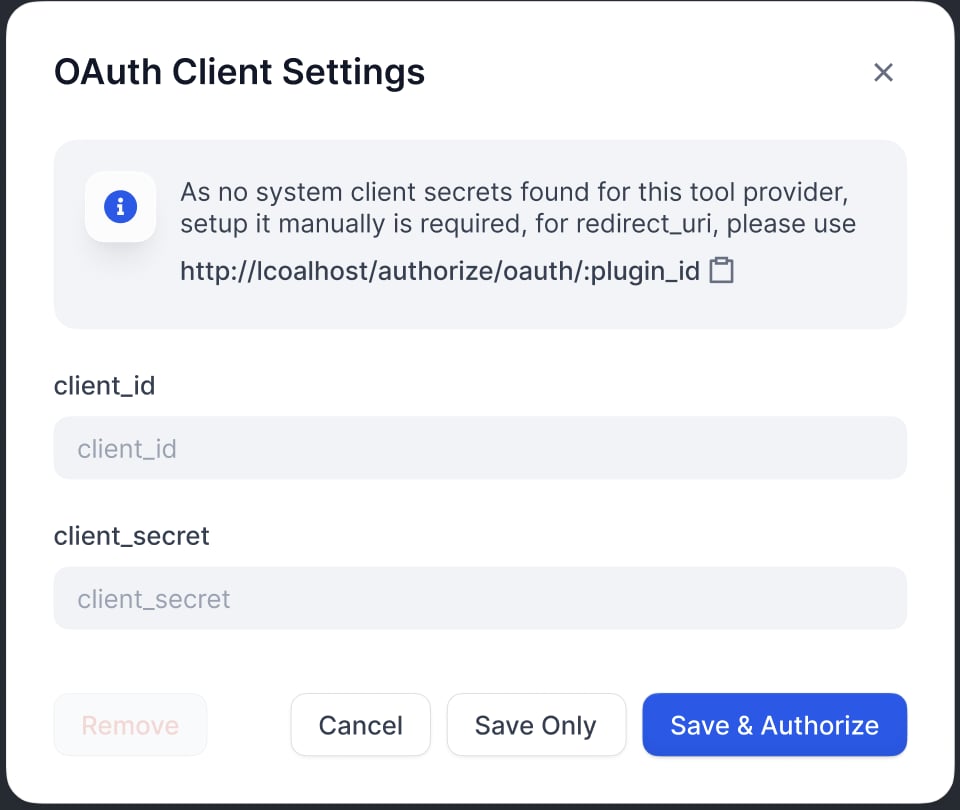
Enter the `client_id` and `client_secret` in the OAuth Client configuration popup to set up the tool provider as a client.
This guide teaches you how to build [OAuth](https://oauth.net/2/) support into your tool plugin.
OAuth is a better way to authorize tool plugins that need to access user data from third-party services, like Gmail or GitHub. Instead of requiring the user to manually enter API keys, OAuth lets the tool act on behalf of the user with their explicit consent.
## Background
OAuth in Dify involves **two separate flows** that developers should understand and design for.
```mermaid theme={null}
sequenceDiagram
autonumber
participant Admin as Admin / Developer
participant Service as Third-party Service
participant Dify
participant User
rect rgb(235, 245, 255)
Note over Admin,Dify: Flow 1: One-time OAuth client setup
Admin->>Service: Register OAuth app
Service-->>Admin: client_id + client_secret
Admin->>Dify: Configure plugin OAuth client
end
rect rgb(245, 255, 235)
Note over User,Service: Flow 2: Per-user authorization
User->>Dify: Click "Authorize"
Dify->>Service: Redirect to consent screen
User->>Service: Approve
Service-->>Dify: Authorization code
Dify->>Service: Exchange for access token
Service-->>Dify: Access + refresh tokens
Dify-->>User: Tool ready to use
end
```
### Flow 1: OAuth Client Setup (Admin / Developer Flow)
On Dify Cloud, the Dify team creates OAuth apps for popular tool plugins and sets up OAuth clients, so users don't need to configure this themselves.
Admins of self-hosted Dify instances must go through this setup flow.
Admins or developers of a Dify instance first register an OAuth app with the third-party service as a trusted application. This provides the credentials needed to configure the Dify tool provider as an OAuth client.
As an example, here are the steps to set up an OAuth client for Dify's Gmail tool provider:
1. Go to [Google Cloud Console](https://console.cloud.google.com) and create a new project, or select an existing one.
2. Enable the required APIs (e.g., Gmail API).
1. Navigate to **APIs & Services** > **OAuth consent screen**.
2. Choose the **External** user type for public plugins.
3. Fill in the application name, user support email, and developer contact.
4. Add authorized domains if needed.
5. For testing, add test users in the **Test users** section.
1. Go to **APIs & Services** > **Credentials**.
2. Click **Create Credentials** > **OAuth 2.0 Client IDs**.
3. Choose the **Web application** type.
4. A `client_id` and a `client_secret` will be generated. Save these as the credentials.
Enter the `client_id` and `client_secret` in the OAuth Client configuration popup to set up the tool provider as a client.
 Register the redirect URI generated by Dify on the Google OAuth Client's page:
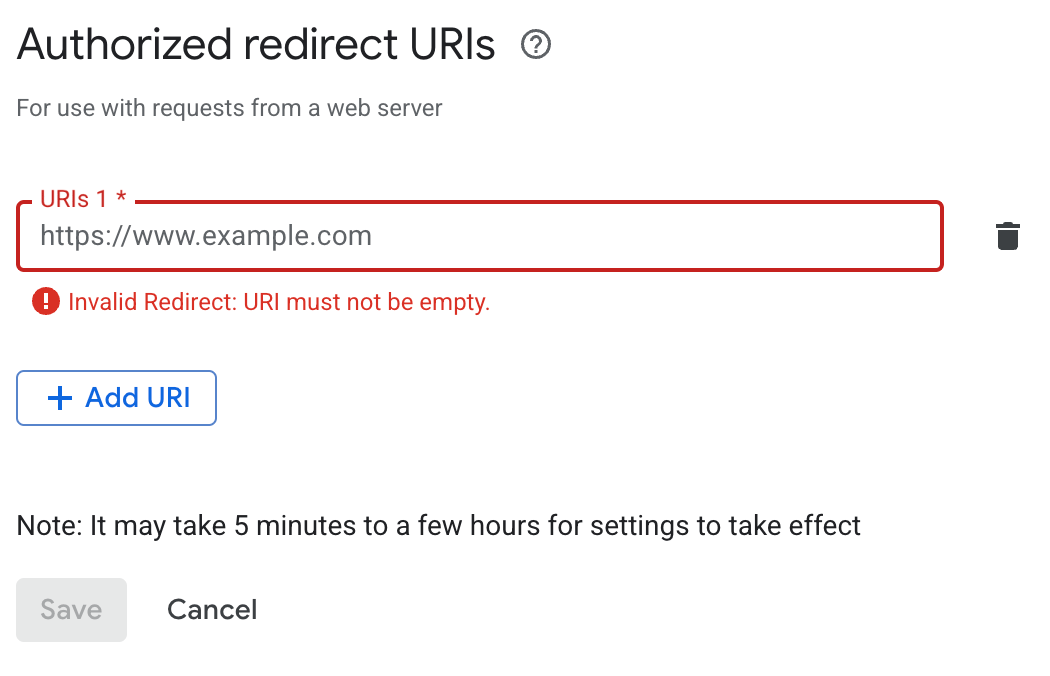 Dify displays the `redirect_uri` in the OAuth Client configuration popup. It usually follows the format:
```bash theme={null}
https://{your-dify-domain}/console/api/oauth/plugin/{plugin-id}/{provider-name}/{tool-name}/callback
```
For self-hosted Dify, `your-dify-domain` should match `CONSOLE_WEB_URL`.
Each service has unique requirements, so always consult the specific OAuth documentation for the services you're integrating with.
### Flow 2: User Authorization (Dify User Flow)
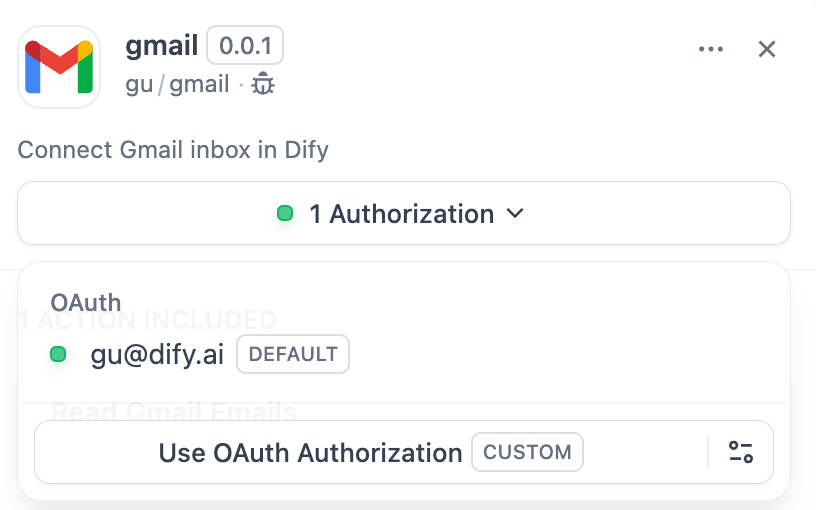
After configuring OAuth clients, individual Dify users can now authorize your plugin to access their personal accounts.
Dify displays the `redirect_uri` in the OAuth Client configuration popup. It usually follows the format:
```bash theme={null}
https://{your-dify-domain}/console/api/oauth/plugin/{plugin-id}/{provider-name}/{tool-name}/callback
```
For self-hosted Dify, `your-dify-domain` should match `CONSOLE_WEB_URL`.
Each service has unique requirements, so always consult the specific OAuth documentation for the services you're integrating with.
### Flow 2: User Authorization (Dify User Flow)
After configuring OAuth clients, individual Dify users can now authorize your plugin to access their personal accounts.
 ## Implementation
### 1. Define OAuth Schema in Provider Manifest
The `oauth_schema` section of the provider manifest tells Dify what credentials your plugin's OAuth setup needs and what the OAuth flow produces. Setting up OAuth requires two schemas:
#### client\_schema
Defines the input for OAuth client setup:
```yaml gmail.yaml theme={null}
oauth_schema:
client_schema:
- name: "client_id"
type: "secret-input"
required: true
url: "https://developers.google.com/identity/protocols/oauth2"
- name: "client_secret"
type: "secret-input"
required: true
```
The `url` field links to the third-party service's help documentation, giving admins and developers a reference during setup.
#### credentials\_schema
Specifies what the user authorization flow produces (Dify manages these automatically):
```yaml theme={null}
# also under oauth_schema
credentials_schema:
- name: "access_token"
type: "secret-input"
- name: "refresh_token"
type: "secret-input"
- name: "expires_at"
type: "secret-input"
```
Include `oauth_schema` and `credentials_for_provider` together to offer both OAuth and API key authentication options.
### 2. Complete Required OAuth Methods in Tool Provider
Add these imports where your `ToolProvider` is implemented:
```python theme={null}
from dify_plugin.entities.oauth import ToolOAuthCredentials
from dify_plugin.errors.tool import ToolProviderCredentialValidationError, ToolProviderOAuthError
```
Your `ToolProvider` class must implement these three OAuth methods (using `GmailProvider` as an example):
Never return the `client_secret` in the credentials of `ToolOAuthCredentials`; doing so could lead to security issues.
```python _oauth_get_authorization_url expandable theme={null}
def _oauth_get_authorization_url(self, redirect_uri: str, system_credentials: Mapping[str, Any]) -> str:
"""
Generate the authorization URL using credentials from OAuth Client Setup Flow.
This URL is where users grant permissions.
"""
# Generate random state for CSRF protection (recommended for all OAuth flows)
state = secrets.token_urlsafe(16)
# Define Gmail-specific scopes - request minimal necessary permissions
scope = "read:user read:data" # Replace with your required scopes
# Assemble Gmail-specific payload
params = {
"client_id": system_credentials["client_id"], # From OAuth Client Setup
"redirect_uri": redirect_uri, # Dify generates this - DON'T modify
"scope": scope,
"response_type": "code", # Standard OAuth authorization code flow
"access_type": "offline", # Critical: gets refresh token (if supported)
"prompt": "consent", # Forces reauth when scopes change (if supported)
"state": state, # CSRF protection
}
return f"{self._AUTH_URL}?{urllib.parse.urlencode(params)}"
```
```python _oauth_get_credentials expandable theme={null}
def _oauth_get_credentials(
self, redirect_uri: str, system_credentials: Mapping[str, Any], request: Request
) -> ToolOAuthCredentials:
"""
Exchange authorization code for access token and refresh token. This is called
to create ONE credential set for one account connection.
"""
# Extract authorization code from OAuth callback
code = request.args.get("code")
if not code:
raise ToolProviderOAuthError("Authorization code not provided")
# Check for authorization errors from OAuth provider
error = request.args.get("error")
if error:
error_description = request.args.get("error_description", "")
raise ToolProviderOAuthError(f"OAuth authorization failed: {error} - {error_description}")
# Exchange authorization code for tokens using OAuth Client Setup credentials
# Assemble Gmail-specific payload
data = {
"client_id": system_credentials["client_id"], # From OAuth Client Setup
"client_secret": system_credentials["client_secret"], # From OAuth Client Setup
"code": code, # From user's authorization
"grant_type": "authorization_code", # Standard OAuth flow type
"redirect_uri": redirect_uri, # Must exactly match authorization URL
}
headers = {"Content-Type": "application/x-www-form-urlencoded"}
try:
response = requests.post(
self._TOKEN_URL,
data=data,
headers=headers,
timeout=10
)
response.raise_for_status()
token_data = response.json()
# Handle OAuth provider errors in response
if "error" in token_data:
error_desc = token_data.get('error_description', token_data['error'])
raise ToolProviderOAuthError(f"Token exchange failed: {error_desc}")
access_token = token_data.get("access_token")
if not access_token:
raise ToolProviderOAuthError("No access token received from provider")
# Build credentials dict matching your credentials_schema
credentials = {
"access_token": access_token,
"token_type": token_data.get("token_type", "Bearer"),
}
# Include refresh token if provided (critical for long-term access)
refresh_token = token_data.get("refresh_token")
if refresh_token:
credentials["refresh_token"] = refresh_token
# Handle token expiration - some providers don't provide expires_in
expires_in = token_data.get("expires_in", 3600) # Default to 1 hour
expires_at = int(time.time()) + expires_in
return ToolOAuthCredentials(credentials=credentials, expires_at=expires_at)
except requests.RequestException as e:
raise ToolProviderOAuthError(f"Network error during token exchange: {str(e)}")
except Exception as e:
raise ToolProviderOAuthError(f"Failed to exchange authorization code: {str(e)}")
```
```python _oauth_refresh_credentials theme={null}
def _oauth_refresh_credentials(
self, redirect_uri: str, system_credentials: Mapping[str, Any], credentials: Mapping[str, Any]
) -> ToolOAuthCredentials:
"""
Refresh the credentials using the refresh token.
Dify calls this automatically when tokens expire.
"""
refresh_token = credentials.get("refresh_token")
if not refresh_token:
raise ToolProviderOAuthError("No refresh token available")
# Standard OAuth refresh token flow
data = {
"client_id": system_credentials["client_id"], # From OAuth Client Setup
"client_secret": system_credentials["client_secret"], # From OAuth Client Setup
"refresh_token": refresh_token, # From previous authorization
"grant_type": "refresh_token", # OAuth refresh flow
}
headers = {"Content-Type": "application/x-www-form-urlencoded"}
try:
response = requests.post(
self._TOKEN_URL,
data=data,
headers=headers,
timeout=10
)
response.raise_for_status()
token_data = response.json()
# Handle refresh errors
if "error" in token_data:
error_desc = token_data.get('error_description', token_data['error'])
raise ToolProviderOAuthError(f"Token refresh failed: {error_desc}")
access_token = token_data.get("access_token")
if not access_token:
raise ToolProviderOAuthError("No access token received from provider")
# Build new credentials, preserving existing refresh token
new_credentials = {
"access_token": access_token,
"token_type": token_data.get("token_type", "Bearer"),
"refresh_token": refresh_token, # Keep existing refresh token
}
# Handle token expiration
expires_in = token_data.get("expires_in", 3600)
# update refresh token if new one provided
new_refresh_token = token_data.get("refresh_token")
if new_refresh_token:
new_credentials["refresh_token"] = new_refresh_token
# Calculate new expiration timestamp for Dify's token management
expires_at = int(time.time()) + expires_in
return ToolOAuthCredentials(credentials=new_credentials, expires_at=expires_at)
except requests.RequestException as e:
raise ToolProviderOAuthError(f"Network error during token refresh: {str(e)}")
except Exception as e:
raise ToolProviderOAuthError(f"Failed to refresh credentials: {str(e)}")
```
### 3. Access Tokens in Your Tools
Use OAuth credentials to make authenticated API calls in your `Tool` implementation:
```python theme={null}
class YourTool(BuiltinTool):
def _invoke(self, user_id: str, tool_parameters: dict[str, Any]) -> ToolInvokeMessage:
if self.runtime.credential_type == CredentialType.OAUTH:
access_token = self.runtime.credentials["access_token"]
response = requests.get("https://api.service.com/data",
headers={"Authorization": f"Bearer {access_token}"})
return self.create_text_message(response.text)
```
`self.runtime.credentials` automatically provides the current user's tokens. Dify handles refresh automatically.
For plugins that support both OAuth and `API_KEY` authentication, use `self.runtime.credential_type` to differentiate between the two authentication types.
### 4. Specify the Correct Versions
OAuth requires a recent SDK and Dify version. Pin the plugin SDK in `requirements.txt`:
```text theme={null}
dify_plugin>=0.5.0
```
In `manifest.yaml`, add the minimum Dify version:
```yaml theme={null}
meta:
version: 0.0.1
arch:
- amd64
- arm64
runner:
language: python
version: "3.12"
entrypoint: main
minimum_dify_version: 1.7.1
```
## Implementation
### 1. Define OAuth Schema in Provider Manifest
The `oauth_schema` section of the provider manifest tells Dify what credentials your plugin's OAuth setup needs and what the OAuth flow produces. Setting up OAuth requires two schemas:
#### client\_schema
Defines the input for OAuth client setup:
```yaml gmail.yaml theme={null}
oauth_schema:
client_schema:
- name: "client_id"
type: "secret-input"
required: true
url: "https://developers.google.com/identity/protocols/oauth2"
- name: "client_secret"
type: "secret-input"
required: true
```
The `url` field links to the third-party service's help documentation, giving admins and developers a reference during setup.
#### credentials\_schema
Specifies what the user authorization flow produces (Dify manages these automatically):
```yaml theme={null}
# also under oauth_schema
credentials_schema:
- name: "access_token"
type: "secret-input"
- name: "refresh_token"
type: "secret-input"
- name: "expires_at"
type: "secret-input"
```
Include `oauth_schema` and `credentials_for_provider` together to offer both OAuth and API key authentication options.
### 2. Complete Required OAuth Methods in Tool Provider
Add these imports where your `ToolProvider` is implemented:
```python theme={null}
from dify_plugin.entities.oauth import ToolOAuthCredentials
from dify_plugin.errors.tool import ToolProviderCredentialValidationError, ToolProviderOAuthError
```
Your `ToolProvider` class must implement these three OAuth methods (using `GmailProvider` as an example):
Never return the `client_secret` in the credentials of `ToolOAuthCredentials`; doing so could lead to security issues.
```python _oauth_get_authorization_url expandable theme={null}
def _oauth_get_authorization_url(self, redirect_uri: str, system_credentials: Mapping[str, Any]) -> str:
"""
Generate the authorization URL using credentials from OAuth Client Setup Flow.
This URL is where users grant permissions.
"""
# Generate random state for CSRF protection (recommended for all OAuth flows)
state = secrets.token_urlsafe(16)
# Define Gmail-specific scopes - request minimal necessary permissions
scope = "read:user read:data" # Replace with your required scopes
# Assemble Gmail-specific payload
params = {
"client_id": system_credentials["client_id"], # From OAuth Client Setup
"redirect_uri": redirect_uri, # Dify generates this - DON'T modify
"scope": scope,
"response_type": "code", # Standard OAuth authorization code flow
"access_type": "offline", # Critical: gets refresh token (if supported)
"prompt": "consent", # Forces reauth when scopes change (if supported)
"state": state, # CSRF protection
}
return f"{self._AUTH_URL}?{urllib.parse.urlencode(params)}"
```
```python _oauth_get_credentials expandable theme={null}
def _oauth_get_credentials(
self, redirect_uri: str, system_credentials: Mapping[str, Any], request: Request
) -> ToolOAuthCredentials:
"""
Exchange authorization code for access token and refresh token. This is called
to create ONE credential set for one account connection.
"""
# Extract authorization code from OAuth callback
code = request.args.get("code")
if not code:
raise ToolProviderOAuthError("Authorization code not provided")
# Check for authorization errors from OAuth provider
error = request.args.get("error")
if error:
error_description = request.args.get("error_description", "")
raise ToolProviderOAuthError(f"OAuth authorization failed: {error} - {error_description}")
# Exchange authorization code for tokens using OAuth Client Setup credentials
# Assemble Gmail-specific payload
data = {
"client_id": system_credentials["client_id"], # From OAuth Client Setup
"client_secret": system_credentials["client_secret"], # From OAuth Client Setup
"code": code, # From user's authorization
"grant_type": "authorization_code", # Standard OAuth flow type
"redirect_uri": redirect_uri, # Must exactly match authorization URL
}
headers = {"Content-Type": "application/x-www-form-urlencoded"}
try:
response = requests.post(
self._TOKEN_URL,
data=data,
headers=headers,
timeout=10
)
response.raise_for_status()
token_data = response.json()
# Handle OAuth provider errors in response
if "error" in token_data:
error_desc = token_data.get('error_description', token_data['error'])
raise ToolProviderOAuthError(f"Token exchange failed: {error_desc}")
access_token = token_data.get("access_token")
if not access_token:
raise ToolProviderOAuthError("No access token received from provider")
# Build credentials dict matching your credentials_schema
credentials = {
"access_token": access_token,
"token_type": token_data.get("token_type", "Bearer"),
}
# Include refresh token if provided (critical for long-term access)
refresh_token = token_data.get("refresh_token")
if refresh_token:
credentials["refresh_token"] = refresh_token
# Handle token expiration - some providers don't provide expires_in
expires_in = token_data.get("expires_in", 3600) # Default to 1 hour
expires_at = int(time.time()) + expires_in
return ToolOAuthCredentials(credentials=credentials, expires_at=expires_at)
except requests.RequestException as e:
raise ToolProviderOAuthError(f"Network error during token exchange: {str(e)}")
except Exception as e:
raise ToolProviderOAuthError(f"Failed to exchange authorization code: {str(e)}")
```
```python _oauth_refresh_credentials theme={null}
def _oauth_refresh_credentials(
self, redirect_uri: str, system_credentials: Mapping[str, Any], credentials: Mapping[str, Any]
) -> ToolOAuthCredentials:
"""
Refresh the credentials using the refresh token.
Dify calls this automatically when tokens expire.
"""
refresh_token = credentials.get("refresh_token")
if not refresh_token:
raise ToolProviderOAuthError("No refresh token available")
# Standard OAuth refresh token flow
data = {
"client_id": system_credentials["client_id"], # From OAuth Client Setup
"client_secret": system_credentials["client_secret"], # From OAuth Client Setup
"refresh_token": refresh_token, # From previous authorization
"grant_type": "refresh_token", # OAuth refresh flow
}
headers = {"Content-Type": "application/x-www-form-urlencoded"}
try:
response = requests.post(
self._TOKEN_URL,
data=data,
headers=headers,
timeout=10
)
response.raise_for_status()
token_data = response.json()
# Handle refresh errors
if "error" in token_data:
error_desc = token_data.get('error_description', token_data['error'])
raise ToolProviderOAuthError(f"Token refresh failed: {error_desc}")
access_token = token_data.get("access_token")
if not access_token:
raise ToolProviderOAuthError("No access token received from provider")
# Build new credentials, preserving existing refresh token
new_credentials = {
"access_token": access_token,
"token_type": token_data.get("token_type", "Bearer"),
"refresh_token": refresh_token, # Keep existing refresh token
}
# Handle token expiration
expires_in = token_data.get("expires_in", 3600)
# update refresh token if new one provided
new_refresh_token = token_data.get("refresh_token")
if new_refresh_token:
new_credentials["refresh_token"] = new_refresh_token
# Calculate new expiration timestamp for Dify's token management
expires_at = int(time.time()) + expires_in
return ToolOAuthCredentials(credentials=new_credentials, expires_at=expires_at)
except requests.RequestException as e:
raise ToolProviderOAuthError(f"Network error during token refresh: {str(e)}")
except Exception as e:
raise ToolProviderOAuthError(f"Failed to refresh credentials: {str(e)}")
```
### 3. Access Tokens in Your Tools
Use OAuth credentials to make authenticated API calls in your `Tool` implementation:
```python theme={null}
class YourTool(BuiltinTool):
def _invoke(self, user_id: str, tool_parameters: dict[str, Any]) -> ToolInvokeMessage:
if self.runtime.credential_type == CredentialType.OAUTH:
access_token = self.runtime.credentials["access_token"]
response = requests.get("https://api.service.com/data",
headers={"Authorization": f"Bearer {access_token}"})
return self.create_text_message(response.text)
```
`self.runtime.credentials` automatically provides the current user's tokens. Dify handles refresh automatically.
For plugins that support both OAuth and `API_KEY` authentication, use `self.runtime.credential_type` to differentiate between the two authentication types.
### 4. Specify the Correct Versions
OAuth requires a recent SDK and Dify version. Pin the plugin SDK in `requirements.txt`:
```text theme={null}
dify_plugin>=0.5.0
```
In `manifest.yaml`, add the minimum Dify version:
```yaml theme={null}
meta:
version: 0.0.1
arch:
- amd64
- arm64
runner:
language: python
version: "3.12"
entrypoint: main
minimum_dify_version: 1.7.1
```